
Product · Favicon & app-icon toolkit
LiveOnelogo
Your complete website icon kit, from one logo.
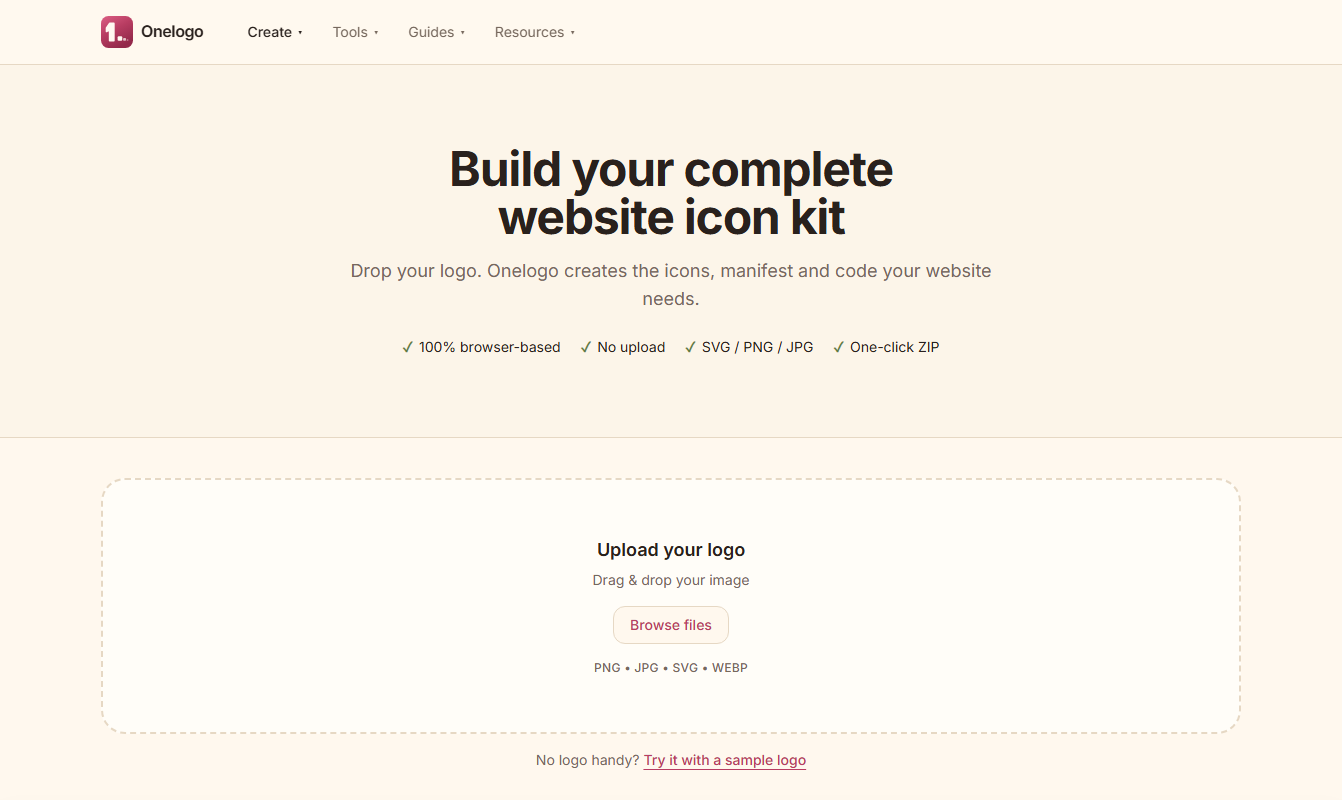
Drop in a logo, type a few letters or pick an emoji and get every favicon, app icon and manifest your site needs in one ZIP — generated entirely in your browser, nothing uploaded.
What is Onelogo?
Every icon your website needs, without the guesswork.
A modern site needs a dozen icon sizes, a manifest and the right markup in the head. Onelogo produces all of it from one source image, checks it for common problems and shows you exactly where to paste it.
Why use it?
A full icon kit in one pass, kept private.
Complete kit
favicon.ico, SVG, PNG, Apple Touch, Android and maskable icons, plus site.webmanifest.
Private by design
Everything runs in your browser. Your logo never leaves your device.
Install guides
Copy-ready code for WordPress, Shopify, Next.js, React, Vue, Angular and Webflow.
Built-in checkers
Inspect an existing favicon or validate a manifest before you ship.
Built for
Developers
Get every size and the head snippet without reading three specs.
Designers
Preview the icon in a browser tab, on a phone and in the safe zone.
Site owners
Follow a step-by-step guide for WordPress, Shopify or Webflow.
PWA builders
Maskable icons and a valid manifest, ready to install.
How it works
One logo in. A full kit out.
Setting up icons by hand means resizing a logo a dozen times, hand-writing a manifest and guessing at markup. Onelogo does it in one step, locally, so the logo stays on your machine.
By hand
Export each size in an editor, build the ICO yourself and hope the markup is right.
Onelogo
Every size, the manifest and the head markup are generated in your browser and packed into one ZIP.
Technical details
What is inside the ZIP
Onelogo draws every size on an HTML canvas in your browser, encodes the ICO file itself and packs everything with JSZip. There is no server step, so nothing you drop in is uploaded.
favicon.ico
A single file holding 16, 32 and 48 px images. Older browsers and some tools still request it from the site root.
favicon.svg
A scalable icon that stays sharp at any size. It is a true vector only when the source was an SVG you did not alter.
apple-touch-icon
120, 152, 167 and 180 px PNGs used when a page is added to an iPhone or iPad home screen.
android-chrome
192 and 512 px PNGs referenced by the web manifest for Android and installed web apps.
maskable icons
Icons with the artwork kept inside the central 80% safe zone, so Android can crop them to a circle or squircle without cutting the logo.
site.webmanifest
The JSON file that names your app, sets its colours and lists the icons the browser should use when it is installed.
Resources
Designing an icon that reads at 16 pixels
Start from a square, simple mark
Favicons are shown at 16 px. A bold symbol or one or two letters stays readable; a detailed wordmark turns to mush.
Keep the safe zone clear
For maskable icons keep the important artwork within the central 80%, so rounded masks never clip it.
Mind light and dark tabs
A dark logo on a transparent background can vanish on a dark browser theme. Add a background or test both.
Link the icons in the head
Placing the files is not enough. Paste the generated markup into your page head so browsers know which icon to use.
Test on real devices
Check the tab in a desktop browser and the home-screen icon on a real iPhone and Android phone before you publish.
Get started
Build your icon kit.
Onelogo is free, needs no account and never uploads your logo.
Open Onelogo